Password Security: The Complete Guide to Protecting Your Accounts !
Here’s a simple question: do you use the same password on more than one website? If so, read what follows carefully.
Password security is undoubtedly the most exploited digital vulnerability. Human errors account for approximately 60% of all security breaches, largely due to poor password choices. And yet, the vast majority of people continue reusing the same combinations across all their accounts, sometimes for years.
According to the State of Workforce Password Security 2026 report, 30% of Canadian organizations surveyed experienced a confirmed cyberattack over the past year. For individuals, the situation is even more concerning: billions of credentials are circulating on the dark web right now, harvested from breaches at services you may use every day.
At TechAuPoint in Longueuil, we regularly see clients arrive with a hacked email account, a compromised bank account, or a stolen identity. In virtually every case, the cause traces back to a single weak point: a password that was too simple, too old, or reused everywhere. This guide gives you the concrete tools to never be in that situation again.
Why one password for everything is a disaster
Imagine having the same padlock on your house, your car, your safe, and your mailbox. If someone copies that key just once, they have access to everything. That’s exactly what happens when you reuse your password across multiple sites.
Cybercriminals use lists of credentials stolen in previous breaches to attempt logins on other services. Since so many people reuse the same passwords, this technique is devastatingly effective. This attack is called credential stuffing, and it’s entirely automated by bots testing millions of combinations per hour.
The classic scenario: an e-commerce site where you have an account gets hacked (it happens constantly). Your email + password end up on a list sold on the dark web. Within hours, a bot tries that combination on Gmail, Facebook, your bank, Netflix, Amazon. If you used the same password everywhere, all those accounts fall at once.
What makes a strong password?
The rules have evolved. A good password is:
- Long: minimum 14 characters (length matters more than complexity)
- Unique: never reused elsewhere, even with slight variations
- Random: no names, birth dates, or dictionary words
- Without obvious patterns: “P@ssword1!” is just as bad as “password”
A good example:
K#7mP!qL2wX9nR4v
impossible to guess, even for software.
A bad example (yet very common):
MyName2024!
or
Fido1234
bots test these first.
The good news: you don’t have to memorize them yourself. That’s exactly where the most important tool in your cybersecurity arsenal comes in.
The solution: a password manager
A password manager is an application that generates, stores, and automatically fills your passwords for each site. You only need to memorize one master password, the manager handles everything else. It’s the digital equivalent of an ultra-secure, encrypted keyring accessible only to you.
In 2026, experts unanimously recommend these options to secure your online accounts:
Bitwarden (free — our main recommendation)
For 95% of users, Bitwarden is the best choice: free, open source, feature-rich, and simple enough for the whole family. It syncs across all your devices (Windows, Mac, iPhone, Android), integrates with all browsers, and generates random passwords on the fly. Its code is open source and publicly audited, nothing to hide.
1Password (paid — the most user-friendly)
Excellent for families and professionals who want the most polished interface and real-time alerts on data breaches. About $3 CAD per month.
Proton Pass (free — privacy-focused)
Developed by the Proton Mail team, known for strict privacy commitments. Ideal if you’re already in the Proton ecosystem.
Our advice at TechAuPoint: Start with free Bitwarden. Installation takes 15 minutes, and you’ll never look back.
Your email: the key that opens every door
If you could only secure one account, make it your email. Why? Because protecting your email account means protecting access to everything else.
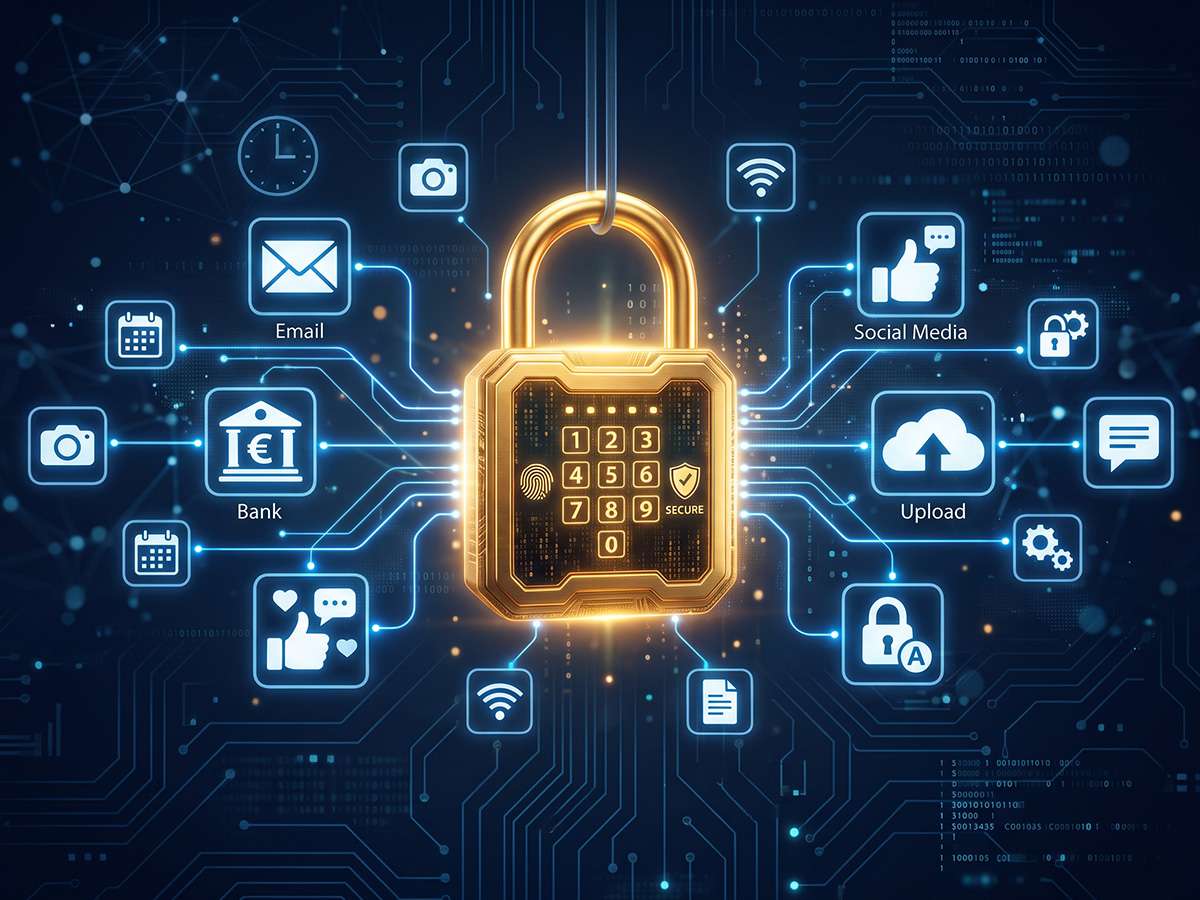
Think about it: when you forget a password on any website, what do you do? You click “Forgot password” and receive a reset link by email. Your Gmail or Outlook inbox is therefore the master key to all your digital locks. If a hacker gains access to it, they can reset the password on your bank account, Facebook, Amazon, everything.
What to do immediately for your email:
- Change your password to something long and unique (16+ characters, never reused)
- Enable two-factor authentication (see next section, mandatory)
- Check connected devices: in Gmail or Outlook settings, view the list of devices with account access. Disconnect anything you don’t recognize
- Enable login alerts to be notified if someone connects from a new device
Two-factor authentication: your indispensable shield
Two-factor authentication (also called 2FA or two-step verification) is the most effective security measure after a strong password. The principle is simple: even if a hacker gets your password, they need a second element to log in, generally a 6-digit code that changes every 30 seconds on your phone.
The Quebec government officially recommends enabling two-factor authentication on all your accounts whenever this option is available.
Where to enable two-factor authentication first:
- ✅ Your email (Gmail, Outlook, Hotmail) — absolute top priority
- ✅ Your bank (Desjardins, TD, RBC, BMO, National) — nearly all offer it
- ✅ Facebook and Instagram — hacked very frequently
- ✅ Amazon and PayPal — credit card data at stake
- ✅ Your password manager — protects the vault itself
- ✅ Microsoft / Apple ID — access to your entire ecosystem
- ✅ Netflix, Spotify — often resold after hacking
How to enable it concretely?
Go to Settings → Security for each service. Look for “Two-factor authentication,” “Two-step verification,” or “2FA.” Prefer an authenticator app (Google Authenticator, Microsoft Authenticator, or Bitwarden itself) over SMS, text messages can be intercepted by advanced hackers.
The 5 most common security mistakes we see in Longueuil
After more than 10 years in cybersecurity Longueuil, our technicians have established a list of the most common errors:
Mistake #1: The universal password
One password for everything. As explained above, it’s the wide-open door.
Mistake #2: The “improved” password
Using the same password with slight variations:
Dog2023
,
Dog2024
,
Dog2025
. Bots test these patterns automatically. It’s no more secure.
Mistake #3: The too-obvious security question
“What is your mother’s maiden name?” this information is often public on Facebook. Enter a random answer and note it in your password manager.
Mistake #4: Neglecting old forgotten accounts
You have an account on an old forum created in 2012 with the same password as today? That site has probably been hacked several times since. Change or delete all your unused old accounts.
Mistake #5: Believing “it won’t happen to me”
In 2025, 43% of small and medium businesses had already been victims of phishing, a figure sharply increasing from 2024. Hackers don’t specifically target famous or wealthy people: they attack en masse, automatically, looking for weak links.
Check if your email has already leaked
There’s a free, globally recognized tool: Have I Been Pwned (haveibeenpwned.com). Simply enter your email address to see if it’s been involved in a known data breach. If so, immediately change the passwords associated with that email, especially if you reuse them elsewhere.
Our cybersecurity checklist in 5 steps to secure your online accounts
Here are 5 concrete actions to take this week to drastically improve your password security and overall digital protection:
- ✅ Install Bitwarden (free) and start transferring your important passwords to it
- ✅ Enable two-factor authentication on your email as the absolute top priority
- ✅ Check your address on haveibeenpwned.com
- ✅ Change any password reused across multiple sites
- ✅ Check the connected devices on your email account and disconnect unknowns
If you don’t know where to start, or if you think you’ve already been hacked, our A+ and CISCO certified technicians are available for a computer diagnostic starting at $29 at TechAuPoint in Longueuil. We can also help via our remote support at $29 to configure your password manager and enable 2FA on your priority accounts without you needing to travel.
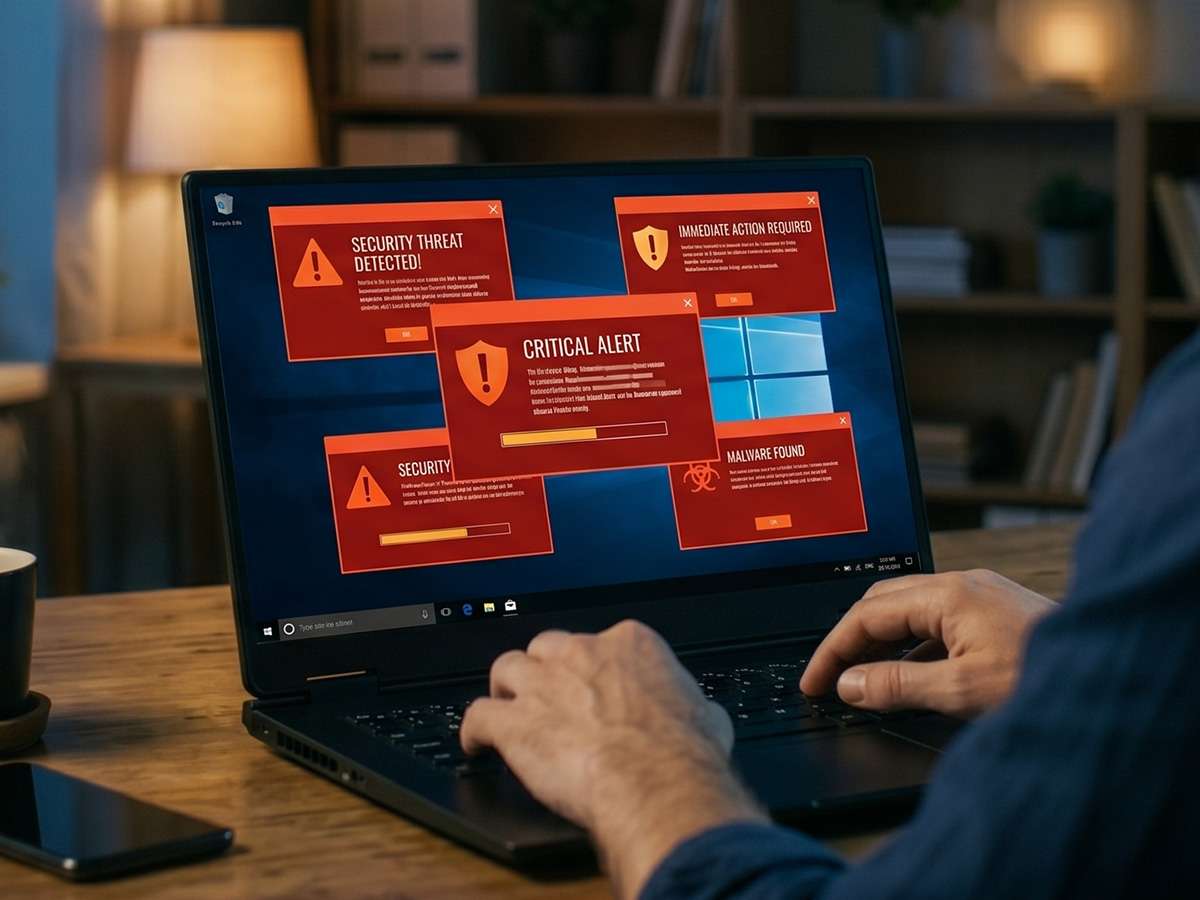
For any emergency (hacked account, virus, ransomware), our virus removal service at $49 includes a complete security check of your system. For more on protecting your family from online scams, consult the official resources of the Canadian Centre for Cyber Security, an essential reference in Canada.
Questions about your computer’s or accounts security? Our A+ and CISCO certified technicians are at your disposal at 4172 Grande Allée in Longueuil, in-home, or remotely. Contact TechAuPoint for a personalized consultation.
FAQ: Your questions about digital security
Is it dangerous to store all my passwords in an app?
It’s actually much safer than memorizing them or writing them on paper. Serious password managers like Bitwarden encrypt your vault with AES-256, the same standard governments use for classified data. Even if Bitwarden’s server were hacked, your passwords would remain unreadable.
What should I do if I think my account has already been hacked?
Act immediately: log out of all devices from account settings, change your password to a completely new unique one, enable two-factor authentication, review recent account activity, and change the password everywhere you used the same one. If your computer is involved, bring it to us for a diagnostic at $29.
Is my phone number enough for 2FA?
SMS is better than nothing, but not ideal. Advanced hackers can hijack your phone number through a technique called “SIM swapping.” For highly sensitive accounts (bank, primary email), prefer an authenticator app like Google Authenticator or Microsoft Authenticator that generates codes locally on your phone.
How can I tell if an email I received is a phishing scam?
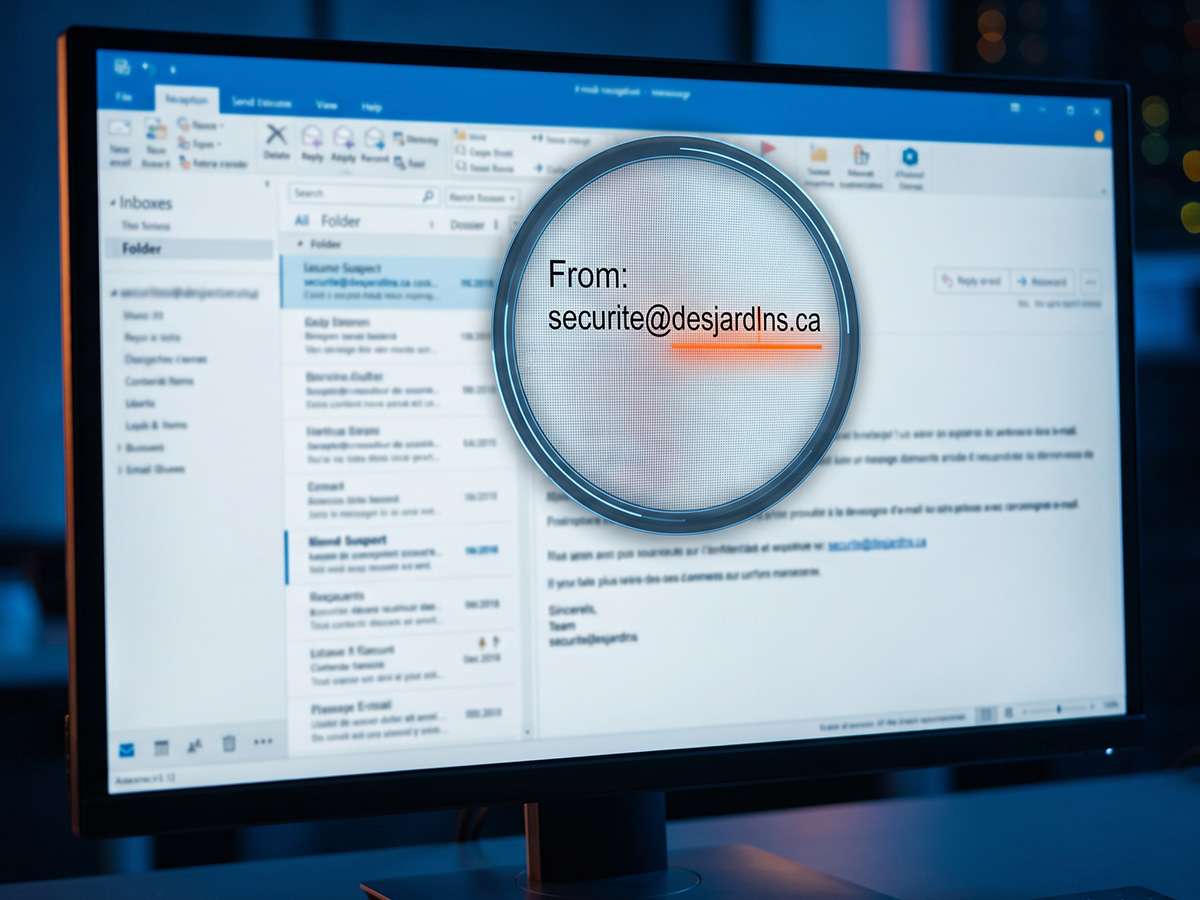
Check the full sender address (not just the displayed name), be wary of links asking you to “confirm your password” or banking info, and never trust artificial urgency (“Your account will be suspended in 24 hours”). When in doubt, connect directly to the official website rather than clicking the link.
Does a good antivirus replace password security?
No. Antivirus and password security are complementary, not interchangeable. An antivirus protects against malicious software, but can’t protect you if a hacker logs into your account using your own stolen credentials from elsewhere. Both together, good antivirus + unique passwords + 2FA constitute a solid defence.