How to Recognize a Phishing Email : The Practical Guide to Never Get Fooled Again
You receive an email from your bank. It asks you to confirm your login information immediately, or your account will be locked within 24 hours. The logo is perfect, the layout is identical to what you normally receive, and the address looks correct at first glance.
Do you click the link?
If you hesitate, this guide is for you. If you think you’d never fall for it, this guide is even more for you. Phishing represents 80% of all email-based attacks worldwide, and Microsoft detected 8.3 billion email phishing threats in the first quarter of 2026 alone. In Canada, the Anti-Fraud Centre received over 112,000 fraud reports in 2025, representing more than $704 million in losses.
The good news: how to recognize a phishing email is a learnable skill. You just need to know exactly what to look for and in what order. At TechAuPoint in Longueuil, our A+ and CISCO certified technicians share their complete method.
What exactly is phishing?
Email phishing scam (or hameçonnage in French) is a technique where a fraudster impersonates a trusted organization (your bank, Canada Revenue Agency, Canada Post, Netflix, Microsoft) to trick you into revealing personal information or clicking on a malicious link.
The goal is always the same: steal your credentials, banking information, or install a virus on your computer. What has changed recently is the sophistication. Thanks to artificial intelligence, fraudulent emails are now written without spelling mistakes, with perfect formatting, and personalized with your first name.
Phishing Quebec is particularly active, as fraudsters exploit our local specifics: Desjardins, Revenu Québec, Bell, Videotron, and the Société de l’assurance automobile du Québec are regularly impersonated.
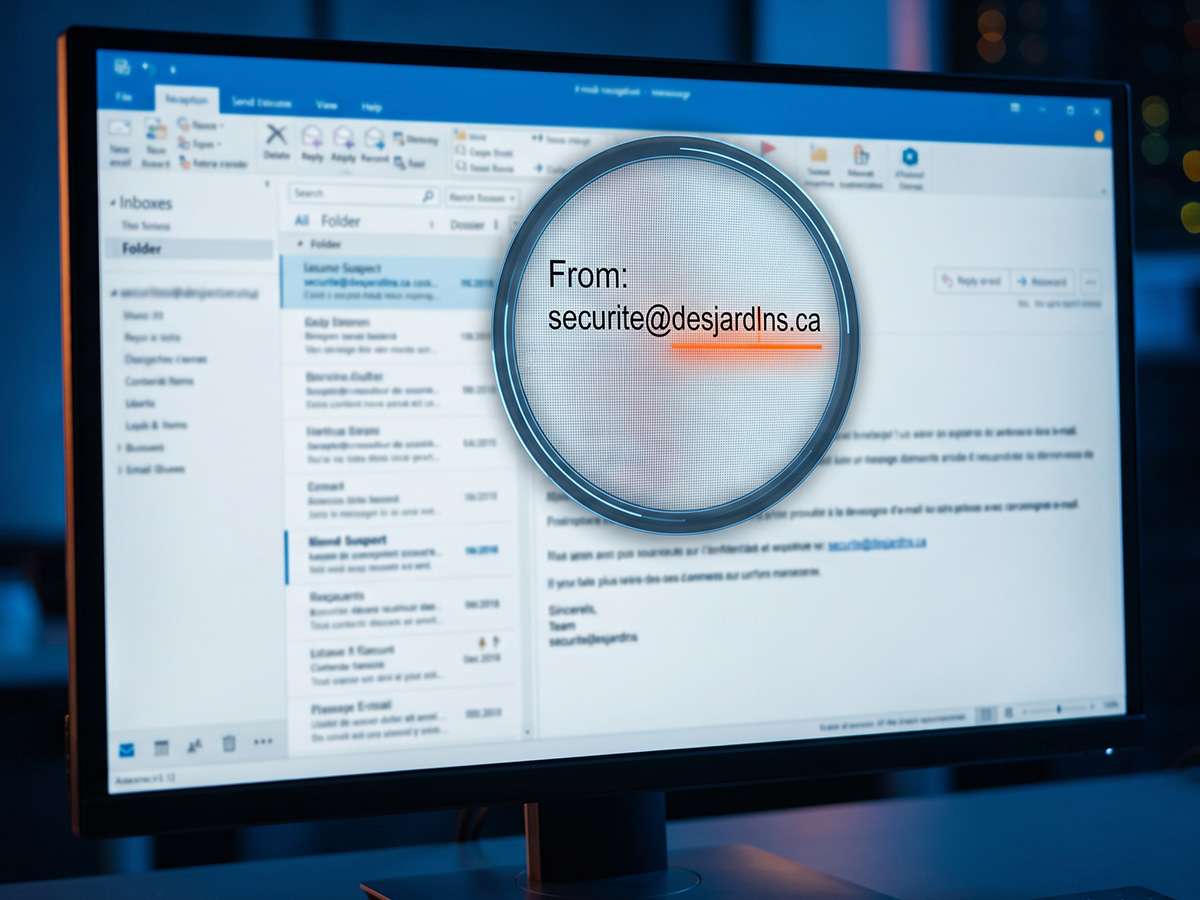
Step 1: Check the sender’s address (not just the displayed name)
This is the first reflex to develop and the most effective. Most people see the displayed name of the sender and stop there. Fraudsters know this and display a perfectly credible name like “Desjardins Customer Service” or “Microsoft Security Team.”
What you need to look at is the full email address in angle brackets. Here’s how to find it depending on your email client:
- Gmail: Click the small arrow next to the sender’s name in the “From:” line
- Outlook: Hover your mouse over the sender’s name
- iPhone/iPad/Android: Tap the sender’s name to expand it
What to examine concretely
Legitimate example:
service@desjardins.com
Typical fraudulent examples:
-
service@desjardins-security.com(invented domain) -
desjardins@gmail.com(a real bank never uses Gmail) -
noreply@desj4rdins.com(the “a” replaced by a “4”) -
security.desjardins@outlook.fr(.fr extension instead of .com, personal Outlook)
The rule is simple: if the domain after the @ is not exactly that of the organization (and only that), it’s a fake bank email or phishing attempt, without exception.
Step 2: Analyze the link BEFORE clicking
A suspicious link in email can lead to a fraudulent site identical to the real one. Before clicking any link in an email, take 5 seconds to do this simple action.
On desktop: Hover your mouse over the link without clicking. The real address appears in the bottom-left corner of your browser or in a small tooltip.
On mobile: Press and hold the link (without releasing) for 2 seconds. A window appears showing the real address.
What to examine in the URL
Imagine you receive an email “from Canada Post” with a link. Compare:
Legitimate:
https://www.canadapost-postescanada.ca/delivery
Fraudulent:
-
https://canadapost-delivery.com/tracking(different domain) -
https://canadapost.ca.package-tracking.net(real domain appears as subdomain of a fake one) -
https://bit.ly/xyz123(shortened link hiding the real destination) -
https://canadapost-postescanada.ca.verification.com(real domain appears but followed by another)
The only way to be sure: the domain name just before the first slash must be exactly that of the organization.
Step 3: Spot the 7 warning signals in the content
Beyond the address and link, here are the 7 signals that almost always betray an email phishing scam, even when everything else seems perfect.
Signal 1: Urgency and threat
“Your account will be suspended in 24 hours,” “Immediate action required,” “Your refund expires tonight.” This artificial pressure is the most universal signal. Real organizations never force you to act in a panic.
Signal 2: You’re asked for information directly
No bank, no government, no legitimate service will ever ask for your password, PIN, social insurance number, or 6-digit verification code by email. Never.
Signal 3: An unexpected refund or prize
“You are entitled to a $187.43 refund from Canada Revenue,” “You have been selected to receive a prize.” If you weren’t expecting this refund, be very suspicious.
Signal 4: Unsolicited attachment
A
.zip
,
.exe
,
.pdf
or even a Word or Excel document attached to an email you weren’t expecting. One rule: never open an unsolicited attachment, even if the email seems to come from someone you know.
Signal 5: Generic greeting
“Dear customer,” “Hello user,” “Dear Sir/Madam” when your bank and all services where you have an account know your first name and normally use it.
Signal 6: The email language doesn’t match
If Desjardins, Revenu Québec, or your insurer suddenly writes to you in the wrong language (English when your correspondence is French, or vice versa), be suspicious.
Signal 7: The link text and destination don’t match
The link text shows
www.desjardins.com
but when you hover, the real address is completely different. This is a common visual manipulation technique.
The most impersonated organizations in Quebec
To protect personal information online, you need to know who fraudsters imitate most often. Here are the organizations most regularly impersonated in phishing Quebec campaigns:
Financial services: Desjardins, RBC, TD, BMO, National Bank, PayPal, Interac
Government: Canada Revenue Agency, Revenu Québec, Service Canada, SAAQ, Emploi-Québec
Delivery: Canada Post, UPS, FedEx, Purolator (especially during the holiday season)
Technology: Microsoft, Apple, Google, Netflix, Amazon, Bell, Videotron
The golden rule: If you have any doubt, never use the link in the email. Open a new tab in your browser and type the official service address yourself.
What to do if you think you received a phishing email?
If you suspect an email is fraudulent, here’s what to do:
- Don’t click anything in the email, neither links nor images
- Don’t reply to the email, even to say you know it’s a scam
- Report it by forwarding it to
spam@fightspam.gc.caor directly to the impersonated organization - Delete it permanently from your inbox and trash
What to do if you already clicked?
If you clicked on a suspicious link or entered information on a fake site, act quickly:
- Immediately change your passwords on the real organization’s site (open it yourself in your browser)
- Contact your bank if you entered financial information
- Enable two-step verification on all your critical accounts
- Have your computer checked if you opened an attachment
Our computer diagnostic service starting at $29 confirms in under 24 hours whether an opened file installed anything on your system. If a virus was installed, our virus removal service at $49 handles it completely. And if you prefer a technician to check your situation without traveling, our remote support at $29 is available quickly.
The official resource for reporting
The Canadian government maintains the Canadian Anti-Fraud Centre (1-888-495-8501 or antifraudcentre-centreantifraude.ca) to receive reports and help victims. Every report helps authorities trace active criminal networks.
The Sûreté du Québec also publishes a guide against cyberattacks regularly updated, particularly useful for Quebec residents.
Your 30-second check before every click
The next time you receive an email asking you to act, ask yourself these 4 questions in order:
- Does the full email address correspond exactly to the official domain?
- Does the real URL of the link (hover before clicking) lead to the correct domain?
- Is there artificial urgency or a request for sensitive information?
- Were you actually expecting this email from this organization?
If even one answer is doubtful, don’t click. Go directly to the official site yourself.
An email seems suspicious and you’d like a second opinion? Our A+ and CISCO certified technicians are available in-store at 4172 Grande Allée in Longueuil, at home, or remotely. Contact TechAuPoint for a quick and stress-free verification.
FAQ: Your questions about phishing emails
How to recognize a phishing email when everything looks perfect?
Even the most sophisticated phishing emails always betray something at the sender domain or real link URL level. Always hover over the link before clicking to see the real destination address. If the domain doesn’t match exactly that of the organization, it’s a phishing attempt.
Are Apple devices protected against phishing?
No. Phishing targets humans, not devices. Whether you’re on an iPhone, iPad, Mac, Android or Windows PC, you can click a fraudulent link and enter your information on a fake site. Human vigilance remains the only true defense against email phishing scams.
I opened a suspicious email attachment on my PC. What should I do?
Immediately disconnect your computer from the Internet (Wi-Fi off or cable unplugged) to limit potential damage, then bring it to TechAuPoint for a diagnostic starting at $29. We check whether malicious software was installed and completely remove it if so.
Do spam filters in Gmail or Outlook provide enough protection?
They block a large portion of obvious fraudulent emails, but sophisticated campaigns regularly slip through. Filters are a net, not a wall. They reduce volume but don’t replace your personal vigilance for emails that still get through.
Can you get hacked just by opening an email, without clicking?
In the vast majority of cases, no. Simply opening an email in text mode is safe. The danger lies in clicking links and opening attachments. However, some email clients that automatically display images may expose your IP address. For unknown emails, disable automatic image display in your settings.