Windows 10 End of Support: What to Do in 2026? The Complete Guide
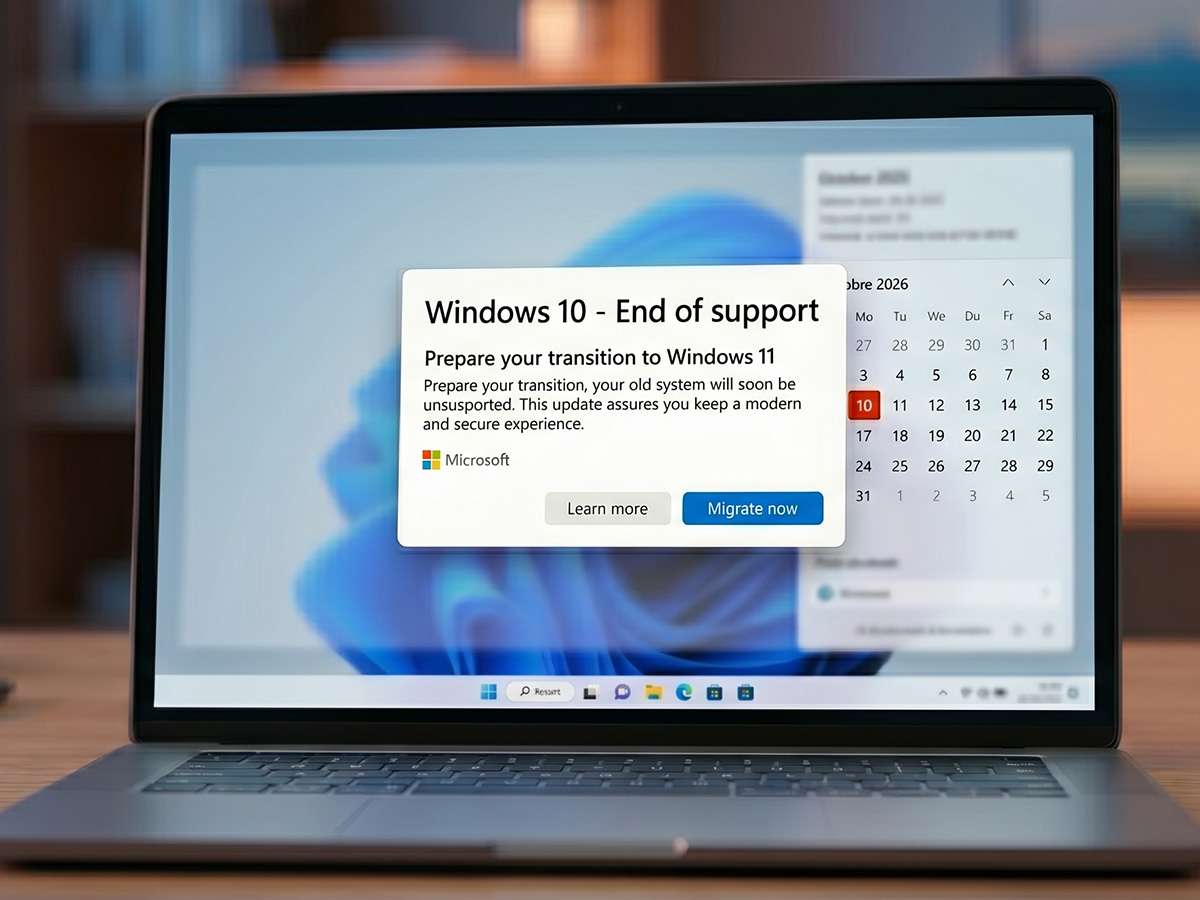
On October 14, 2025, Microsoft officially ended standard support for Windows 10. If you’re still using this operating system, your PC no longer automatically receives critical security updates. Don’t panic: your computer won’t shut down overnight. But every new vulnerability discovered now remains an open door for viruses, ransomware, and malware.
At TechAuPoint in Longueuil, we see dozens of South Shore clients each week asking us the same question: “Should I buy a new computer or can I keep mine?”. The good news is that you have more options than you think, and some are completely free.
In this complete guide, our A+ and CISCO certified technicians explain all your options for 2026, with real costs and honest recommendations based on your situation.
What does the Windows 10 end of support really mean?
Since October 14, 2025, Microsoft no longer provides:
- Automatic security updates (vulnerability patches)
- Bug fixes in Windows 10
- Official Microsoft technical support
- New features (already discontinued long ago)
⚠️ Important: Your computer continues to work normally. Your software still runs. The risk is progressive, not immediate. But with approximately 850 million PCs still running Windows 10 worldwide, hackers are actively targeting these increasingly predictable machines.
Option 1: Take advantage of the free ESU program until October 2026
This is the solution we recommend to 90% of our clients at TechAuPoint if their PC still runs well. Microsoft created the ESU (Extended Security Updates) program which gives you an additional year of critical security updates, until October 13, 2026.
In Canada, you have 3 ways to enroll in ESU:
1. Free with Windows Backup (our recommendation) Sign in with your Microsoft account and activate the “Windows Backup” feature to sync your settings to the cloud. You get ESU at no cost.
2. Free with 1,000 Microsoft Rewards points If you use Bing, Xbox, or the Microsoft Store, you may have accumulated enough points to pay for your ESU without spending a dime.
3. One-time purchase of $30 USD (about $42 CAD) If you refuse to use a Microsoft account or sync to the cloud, you can simply pay once for 1 year of updates. One license covers up to 10 devices.
How to actually enroll in ESU
Go to Settings → Update & Security → Windows Update. Look for the “Enroll now” link near the end-of-support message. Since the rollout is gradual, the option may not appear immediately. Sign in with your Microsoft account (local accounts are not eligible) and follow the steps. You’ll need to sign in at least once every 60 days to maintain your eligibility.
If the process seems complicated, our remote support service at $29 lets our technicians set up ESU for you in minutes, without you even having to leave home.
Option 2: Upgrade to Windows 11 (if your PC is compatible)
Windows 11 is the most sustainable solution. The catch? Microsoft has imposed strict hardware requirements that exclude many older PCs. Here are the minimum requirements for Windows 11:
- Processor: 64-bit, dual-core, 1 GHz minimum, Intel 8th gen or AMD Ryzen 2000 or newer (2018 CPU or newer)
- RAM: 4 GB minimum (8 GB recommended)
- Storage: 64 GB minimum
- TPM 2.0: Required (security chip)
- Secure Boot: UEFI enabled
- Graphics: DirectX 12 compatible
How to know if your PC is compatible?
The simplest method is to download Microsoft’s free PC Health Check app. It analyzes your hardware in 30 seconds and clearly tells you if you’re eligible. Often, TPM 2.0 and Secure Boot are disabled by default in the BIOS even though the chip is physically present. This is exactly the type of optimization our technicians perform daily in our shop.
If you want to learn more about the complete process, check our Windows 11 upgrade page. The complete service (backup + clean install + essential software reinstall) costs $149 at TechAuPoint, and most migrations are completed same day.
Why have a professional migrate your PC?
A failed migration can result in losing all your personal data. Our technicians at TechAuPoint follow a precise protocol: complete backup, driver compatibility check, clean install, essential program reinstallation, and activation of all protections. A simple mistake during this step can turn an upgrade into a nightmare.
Option 3: Replace your computer
If your PC is more than 10 years old and incompatible with Windows 11, the question arises: repair or replace? Our advice at TechAuPoint: always get a computer diagnostic at $29 before making a decision. Often, a simple RAM or SSD addition can extend a computer’s life by 3 to 5 years.
Simple rule: if the repair/upgrade cost exceeds 50% of the price of an equivalent new PC, it’s better to replace it. Otherwise, keep your current machine. For a new computer, take advantage of our new PC setup service at $69, saving you hours of configuration.
Option 4: Continue on Windows 10 without ESU (not recommended)
Technically, you can continue using Windows 10 without any security updates. We strongly advise against it. According to Statistics Canada, cyberattacks against individuals have skyrocketed in recent years. An unpatched PC becomes an easy target for identity theft, ransomware, and banking fraud.
If you still choose this path, at minimum:
- Install a quality third-party antivirus
- Disable unnecessary services
- Never open suspicious attachments
- Use a recent browser (Chrome, Firefox, Edge are still updated)
And after October 2026?
After October 13, 2026, the consumer ESU ends. At that point, your only options will be:
- Upgrade to Windows 11 on your current PC if compatible
- Buy a new computer with Windows 11
- Switch to Linux (free, but learning curve)
- Continue on Windows 10 without protection (risky)
Businesses can pay to extend until 2028, but at rates that double each year ($61 the first year, $122 the second, $244 the third according to the official Microsoft program).
Our recommendation at TechAuPoint
Here’s how we proceed when a client comes to us at 4172 Grande Allée in Longueuil with this question:
- Windows 11 compatibility diagnostic on the spot (5 minutes)
- If Windows 11 compatible → we recommend immediate migration ($149, same day)
- If incompatible but PC in good condition → we set up free ESU (you leave with peace of mind until 2026)
- If old and slow PC → we evaluate an upgrade (RAM/SSD) or complete replacement
Our technicians cover the entire South Shore: Longueuil, Greenfield Park, Saint-Hubert, Saint-Lambert, Brossard, Boucherville, and Saint-Bruno. We also offer in-home service at $139 if you prefer not to travel.
Need help preparing your PC for the end of Windows 10? Our A+ and CISCO certified technicians are at your service in Longueuil, in-home or remotely. Contact TechAuPoint now for a diagnostic and honest recommendation.
FAQ: Your questions about the end of Windows 10
Will my computer stop working in October 2026?
No. Windows 10 will continue to start and run normally. But without security updates, your PC becomes progressively vulnerable to viruses, ransomware, and other threats. It’s strongly recommended to upgrade to Windows 11 or switch to a new computer before this date.
How much does a Windows 11 upgrade cost at TechAuPoint?
The complete Windows 11 upgrade costs $149 at TechAuPoint and includes data backup, clean system installation, reinstallation of your essential software, and configuration of all protections. Most migrations are completed same day.
Can my 2017 PC upgrade to Windows 11?
Most computers older than 2018 are not compatible due to the minimum Intel 8th generation processor requirement (or AMD Ryzen 2000+). However, some 2017 PCs with high-end 7th generation i5/i7 can work with workarounds. A diagnostic at TechAuPoint for $29 will give you the exact answer.
Does free ESU work in Canada?
Yes. In Canada, you can get ESU for free in two ways: by enabling Windows Backup (syncing settings to the cloud) or by redeeming 1,000 Microsoft Rewards points. The paid version costs $30 USD for one year and covers up to 10 devices.
Is it better to buy a new PC or keep mine?
It depends on the condition of your current machine. If your PC is less than 5 years old and runs well, free ESU until 2026 followed by a Windows 11 upgrade is the best option. If it’s over 7-8 years old and slow, replacement is often more cost-effective. Always get a professional diagnostic before deciding.