SSD Drive: Why This Upgrade Can Double Your PC’s Speed
Do you have time to make a coffee before Windows finishes booting up? Does your web browser take 20 seconds to open a page? Before spending $1000 on a new computer, know that there’s a much more economical solution that can literally transform your current machine: installing an SSD drive. At TechAuPoint in Longueuil, it’s the most popular upgrade we perform, and the one that brings the most satisfaction to our customers.
In this article, we’ll explain why the SSD drive has become essential in 2026, how it works compared to an old hard drive, and how our SSD migration service can give your PC a second life in less than 24 hours.
Understanding the Difference: HDD vs SSD Drive
To fully grasp why this upgrade is so powerful, you need to understand the fundamental difference between the two storage technologies.
The HDD: An Old Record Player Inside Your PC
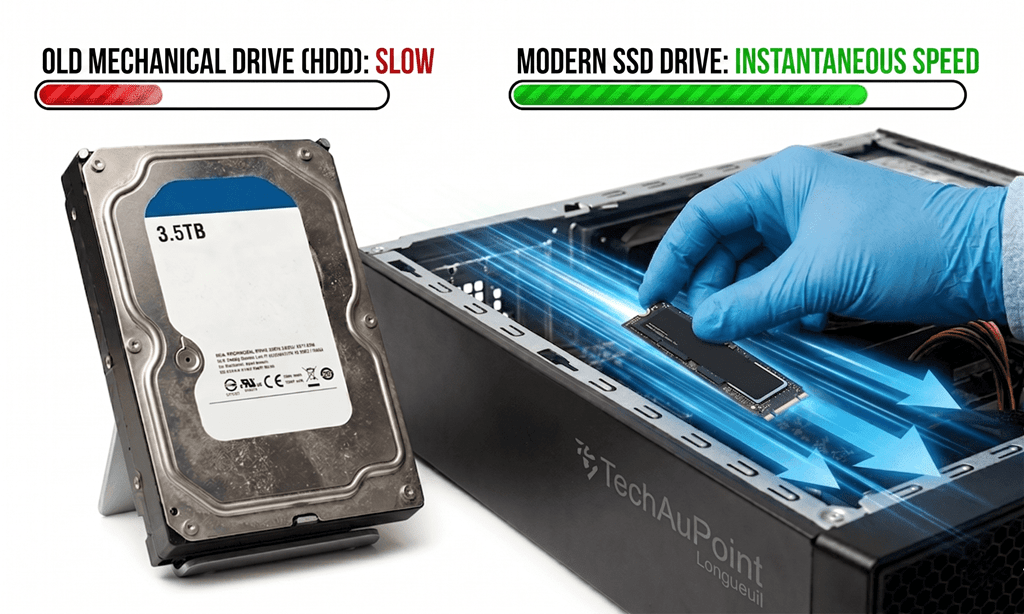
Most computers purchased before 2018 (and many bought at big box stores since) still use mechanical hard drives, or HDDs (Hard Disk Drive). Imagine a mini vinyl record player: a magnetic platter spins at 5400 or 7200 revolutions per minute, and a read head physically moves to access your data.
This technology has two huge problems:
- Mechanical slowness: no physical movement can compete with pure electronics
- Fragility: a simple impact or fall can destroy the platters and cause total data loss
The SSD Drive: Speed Without Compromise
An SSD drive (Solid State Drive) has no moving parts. It’s flash memory, similar to a USB drive but infinitely faster and more durable. The result? Read and write speeds that can be 10 to 35 times faster than a traditional HDD.
The Numbers Speak for Themselves
To give you a concrete idea:
- Typical HDD: 80-150 MB/s read speed
- SATA SSD: 500-550 MB/s read speed (4 to 6 times faster)
- NVMe SSD: 3000 to 7000 MB/s read speed (20 to 50 times faster)
According to Crucial, one of the world’s leaders in storage, an SSD reduces Windows boot time by over 70% in the vast majority of cases.
The 6 Concrete Benefits of an SSD Drive
1. Ultra-Fast Boot Up
With an SSD drive, Windows starts in 10 to 20 seconds instead of 2 to 5 minutes. You press the button, and before you even have time to put down your coffee cup, your desktop is already ready to use.
2. Instant Software Loading
Chrome, Word, Excel, Outlook, Photoshop… all your programs open in 1 to 3 seconds instead of 15 to 30 seconds. Cumulated over a workday, it’s several hours of productivity recovered each month.
3. Multitasking Without Slowdowns
Having 20 Chrome tabs open while working on a document and listening to music? No problem for a PC equipped with an SSD. The fluidity is total, even on older machines.
4. Superior Mechanical Reliability
Without moving parts, the SSD drive is much more resistant to shocks. This is particularly crucial for laptops that are transported daily. A drop that would have killed an HDD will often do nothing to an SSD.
5. Reduced Energy Consumption
An SSD consumes up to 70% less energy than an HDD. For laptops, this translates to battery life increased by about 30 to 45 minutes per charge.
6. Absolute Silence
No more clicking and constant humming noises. An SSD drive is completely silent. If your old PC makes noise even at rest, it’s probably your hard drive that’s dying.
Which Type of SSD Drive Should You Choose in 2026?
There are two main categories of SSDs that we install at TechAuPoint:
The 2.5-Inch SATA SSD
This is the standard SSD, compatible with almost all laptops and desktops from the last 10 years. It already offers a massive performance gain (5 to 6 times faster than an HDD). It’s the most economical option and the one we recommend for the majority of computer upgrades.
Common capacities: 240 GB, 500 GB, 1 TB, 2 TB
The M.2 NVMe SSD
The NVMe SSD is the new generation of ultra-fast storage. It plugs directly into the motherboard via an M.2 port and uses the PCIe bus to reach speeds 10 times higher than a SATA SSD. It’s the ideal option for Gaming PCs, workstations and intensive users (video editing, photo, programming).
Common capacities: 500 GB, 1 TB, 2 TB, 4 TB
How to Know Which is Compatible with Your PC?
This is precisely where our expertise comes in. Our computer diagnostic service checks your machine’s compatibility and recommends the best option according to your budget and usage. No bad surprises, no parts that don’t fit.
Our SSD Migration Service at TechAuPoint
Many customers hesitate to switch to SSD for fear of losing their data or having to reinstall everything. At TechAuPoint, our complete SSD installation Longueuil service includes:
Step 1: Diagnostic and Recommendation
We analyze your PC to determine:
- The compatible SSD type (SATA or NVMe)
- The optimal capacity based on your usage
- The state of your current Windows installation
Step 2: Cloning or Clean Installation
Two options are available to you:
- Complete cloning: We copy Windows, your software and your data identically to the new SSD. You find your exact environment, but faster.
- Clean installation: We install a fresh Windows and migrate your personal data. This option is ideal if your PC has accumulated problems over time. See our Windows reinstallation service at $89.
Step 3: Physical Installation and Testing
Our A+ and CISCO certified technicians physically install the SSD drive, configure the BIOS for optimal performance, and perform speed tests to validate that everything works perfectly.
Step 4: System Optimization
We configure Windows to take full advantage of the SSD: partition alignment, TRIM activation, disabling unnecessary functions that prematurely wear out the SSD. To go further, our hardware installation service at $49 covers the entire procedure.
How Much Does an SSD Drive Upgrade Cost?
Here’s a transparent estimate to help you plan:
- 500 GB SATA SSD (part): starting at $149
- 1 TB SATA SSD (part): starting at $199
- 500 GB NVMe SSD (part): starting at $179
- 1 TB NVMe SSD (part): starting at $229
Compare that to $1000+ for a new computer, and you understand why it’s become THE most popular upgrade to speed up slow computer.
When the SSD is NOT the Solution
Let’s be honest: the SSD isn’t a universal magic wand. Here are some cases where other interventions are necessary:
- Insufficient RAM: If you have less than 8 GB of RAM, add some first
- Viruses or malware: A virus removal at $49 may suffice
- Overheating: See our article on dust removal
- Processor too old: On PCs over 10 years old, the CPU may be the real bottleneck
That’s why we always start with a complete diagnostic before recommending a hard drive replacement. We won’t sell you something you don’t need.
Who is the SSD Drive an Obvious Choice For?
- Students with laptops over 3 years old that are slow
- Remote workers who need productivity
- Gamers who want to reduce loading times
- Content creators (photo, video) who handle large files
- Anyone whose PC takes more than 1 minute to boot
If you live in Saint-Hubert, Saint-Lambert, Brossard or anywhere else on the South Shore, our shop at 4172 Grande Allée in Longueuil is your destination for this transformation.
Conclusion: The Most Cost-Effective Upgrade in Computing
The SSD drive is undoubtedly the best price/quality upgrade in all of modern computing. For an investment of $149 to $229, you can literally double or triple the useful life of your computer, save over $800 compared to buying a new machine, and rediscover the pleasure of using a responsive and silent PC.
At TechAuPoint in Longueuil, our A+ and CISCO certified technicians transform “turtles” into “rabbits” every day. The majority of installations are completed the same day, with complete transfer of your data.
Visit us at 4172 Grande Allée in Longueuil, or contact us for a free and personalized estimate. Your old PC deserves a second life.
FAQ – Frequently Asked Questions About SSD Drives
How long does an SSD drive installation take at TechAuPoint?
The majority of our SSD installations are finished the same day, generally in 3 to 6 hours. For more complex cases (large amount of data, pre-existing Windows problems), allow 24 hours. We’ll call you as soon as your PC is ready to be picked up.
Will I lose my data, photos and software during the migration?
Absolutely not, that’s our guarantee. Our cloning process transfers the entirety of your hard drive to the new SSD: Windows, programs, documents, photos, browser bookmarks, emails. You find your environment exactly as it was before, but infinitely faster.
What SSD capacity should I choose?
For standard office use (web, email, documents), 500 GB is more than enough. For users who store many photos, videos or games, we recommend 1 TB. Professionals (video editing, large software) should aim for 2 TB or more. We advise you according to your real usage.
Is my old 2015 laptop really worth upgrading to an SSD?
In 90% of cases, yes. If your laptop has at least 4 GB of RAM (ideally 8 GB) and works without major hardware issues, an SSD can make it 5 to 10 times faster. It’s often enough to push back the purchase of a new PC by 3 to 5 additional years.
What’s the price difference between a SATA SSD and an NVMe SSD?
The difference is generally $30 to $50 for the same capacity. If your PC supports NVMe, it’s almost always worth it for the superior speed. However, for standard use (office, web), SATA remains perfectly satisfactory and already offers a huge gain compared to an HDD.